
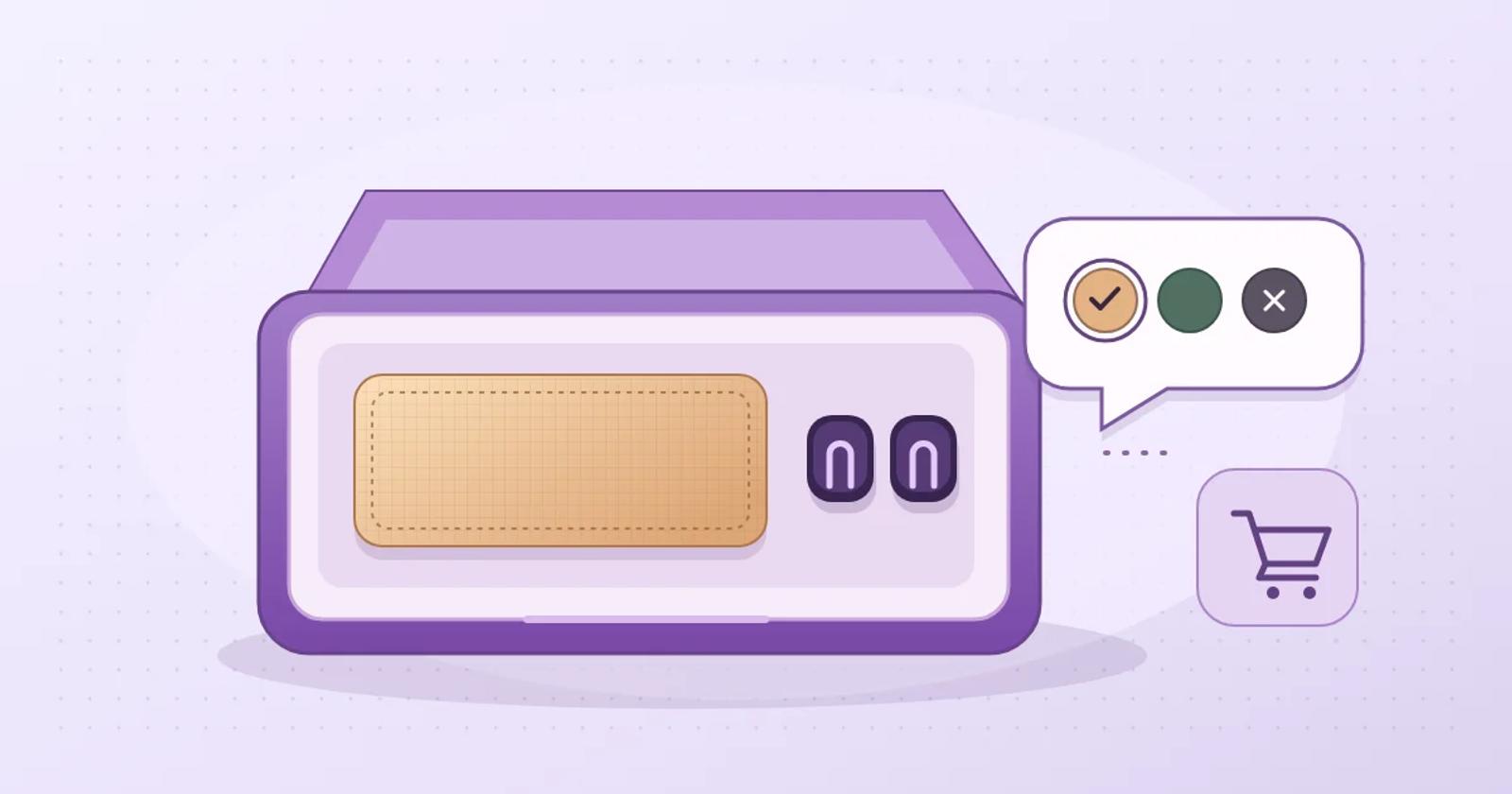
How to Test AI Chat for Fixed Bundles on Shopify
Compare a bundle added from AI chat with the same bundle added from its Shopify product page. Check the options, quantities, and cart grouping.
To test AI chat for a Shopify fixed bundle, add the same bundle from its product page and from chat in two separate empty carts. Compare the bundle identity, selected options, and quantity of each component. If chat can describe the bundle accurately but its Add to Cart action loses a selection, send the shopper to the bundle page to choose the option there.
Pick a bundle that can expose a wrong selection
Use a fixed bundle whose components are also available separately. In the Shopify Bundles app, merchants can set how many of each product to include and which variants are available in the bundle. A color can be available on the standalone product page while excluded from the kit.
For this example, create a fictional Desk Setup Kit in a test store. Each kit contains one desk mat and two cable clips. The standalone mat comes in forest, sand, and charcoal. The kit offers forest and sand only, with forest as the default and shown in the main product image. Standalone mats and clips should both be available, so an assistant can make a plausible mistake by sending a shopper to the individual products.
Use the product page as the control
In your test store or merchant-approved preview, record the kit’s product URL and which options it offers. Select sand on the kit page and add one kit to an empty cart. Record how the theme displays the bundle, which mat is selected, and how many clips are included. Repeat with forest in another empty cart. Use those results as the control. If the normal product page fails to produce the expected kit, fix the store setup before grading chat.
Ask these four questions in AI chat
Keep the storefront, catalog, and market the same across tests. Start each case with a fresh conversation and an empty cart. Use the shopping path your customers will actually see, and stop at the cart.
- Identify the contents. Ask “What’s included in the Desk Setup Kit?” Expect one mat and two clips. A suggested card or link should open the kit page.
- Choose the option that differs from the default. Ask “Can you add one Desk Setup Kit with the sand mat?” If chat offers an Add to Cart button, use it and compare the result with the sand control. A forest kit, a single clip, or separately added items fails this check. If chat offers a link, follow it and verify that sand is selected or that the shopper can choose sand before adding.
- Change the selection before adding. In a new conversation, ask for the sand kit, then say “Actually make that forest” before clicking any button. Use the action in the latest reply. Compare the result with the forest control. If the new reply says forest but its action still adds sand, the correction fails.
- Request an excluded color. Ask “Can I get the kit with the charcoal mat?” Expect the chat to explain that charcoal is unavailable in the kit and give the available kit colors. It can point to the standalone charcoal mat as a separate option if that distinction is clear. An offer to add a charcoal kit fails even when the standalone mat is in stock.
Compare Gorgias and Brambles.ai on the same kit
Gorgias Shopping Assistant recommends products as a whole and uses the main product image to help judge color matches. A photo of the forest kit can lead the assistant to miss that the kit comes in sand. Its Shopify product cards in chat can open a product page or add an item to the cart. Ask for sand and check whether the reply offers the right kit. If it offers direct add, compare the resulting cart with the sand control.
Brambles.ai Product Discovery describes AI chat recommendations based on a store’s catalog and content. For the same kit, check that the recommendation names the right options and opens the kit page. If direct add is offered for your setup, apply the same cart check. These are documented starting points for a comparison. The four cases are a test you can run in your store.
Decide what to enable for the pilot
Enable direct add for the tested kit when both color paths produce the same bundle and quantities as the product-page control and chat handles the excluded color correctly. Use a bundle-page link if the answers are accurate and the normal product page can handle selections. If chat gives the wrong contents, offers an excluded option, or links to a standalone item as though it were the kit, leave that bundle out of the pilot until the issue is fixed and retested.
Save the prompt, expected option, chat answer, link or button, and observed cart contents for each run. Repeat after you change a component quantity or remove an option from the bundle. For a Brambles.ai Brand pilot, bring one bundle URL, the included quantities, and an option sold separately that customers can’t choose in the bundle. Use the Shopify product discovery test guide for the rest of your pilot.
Related posts
View all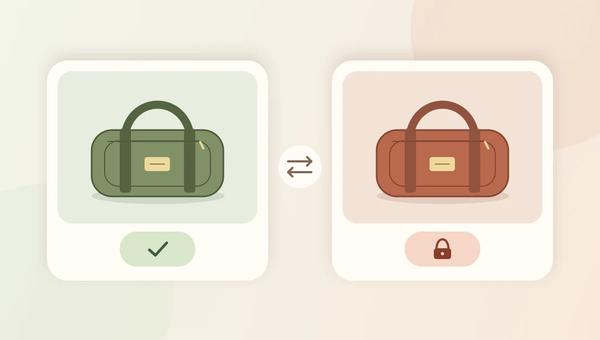
How to Test AI Chat for Final-Sale Variants on Shopify
Use one product and two colors to check whether AI chat gives the right return terms before a shopper adds the item to their cart.
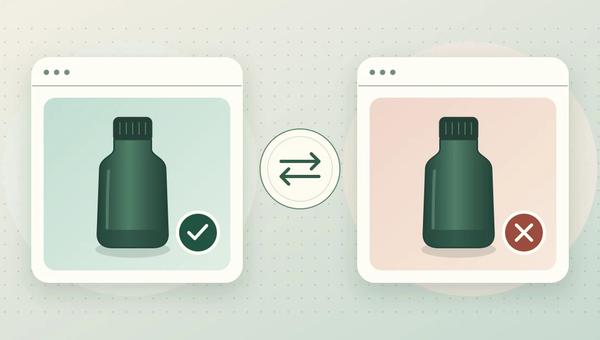
How to Test AI Chat Across Shopify Markets
Use two Shopify markets and two products to see whether AI chat recommends items shoppers can buy after they change countries.
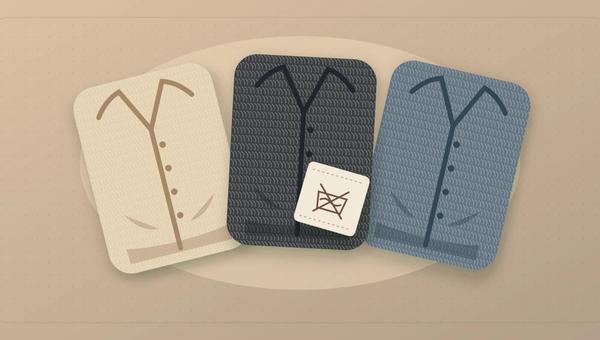
How to Test AI Chat Fabric and Care Answers on Shopify
Run a four-question check on one Shopify garment to catch AI chat answers that copy fabric or care instructions from the wrong color.
Explore Brambles.ai
Learn more about our AI-powered agentic commerce platform, agentic shopping, and shopping assistance solutions.
Explore More Insights
Discover more articles on AI, automation, and business innovation
View All Articles